Using Feedlo Effectively
Organizing Posts with Tags and Match in URL

Hello! 👋
Organizing your Feedlo posts helps your users quickly understand updates and ensures your changelog stays clean and professional. Two powerful features for this are Tags and Match in URL.
Using Tags to Organize Your Posts
Tags let you label your posts by type, priority, or category, making it easy for users to filter and understand updates at a glance.
How to Use Tags
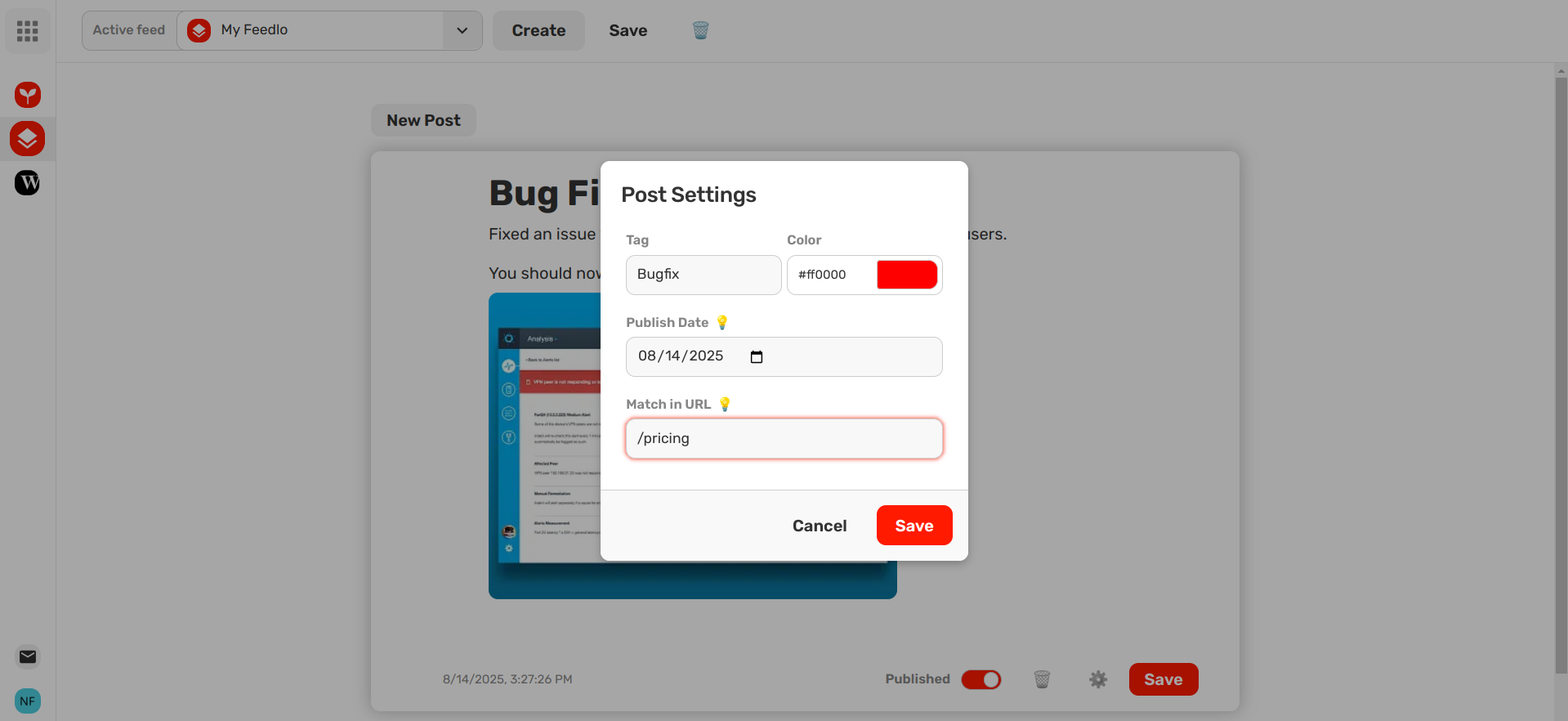
- In the post settings, add a tag such as Bugfix, New Feature, or Improvement.
- Assign a color to each tag — it will appear in the feed next to the post, helping users quickly identify the update type.
Example:
Title: Bug Fix – Notifications
Tag: Bugfix (Red)
This post will display the red Bugfix tag in the feed, immediately signaling the type of update.
Using Match in URL
Sometimes, you may want a post to appear only on specific pages of your website. The Match in URL field makes this possible.
How It Works
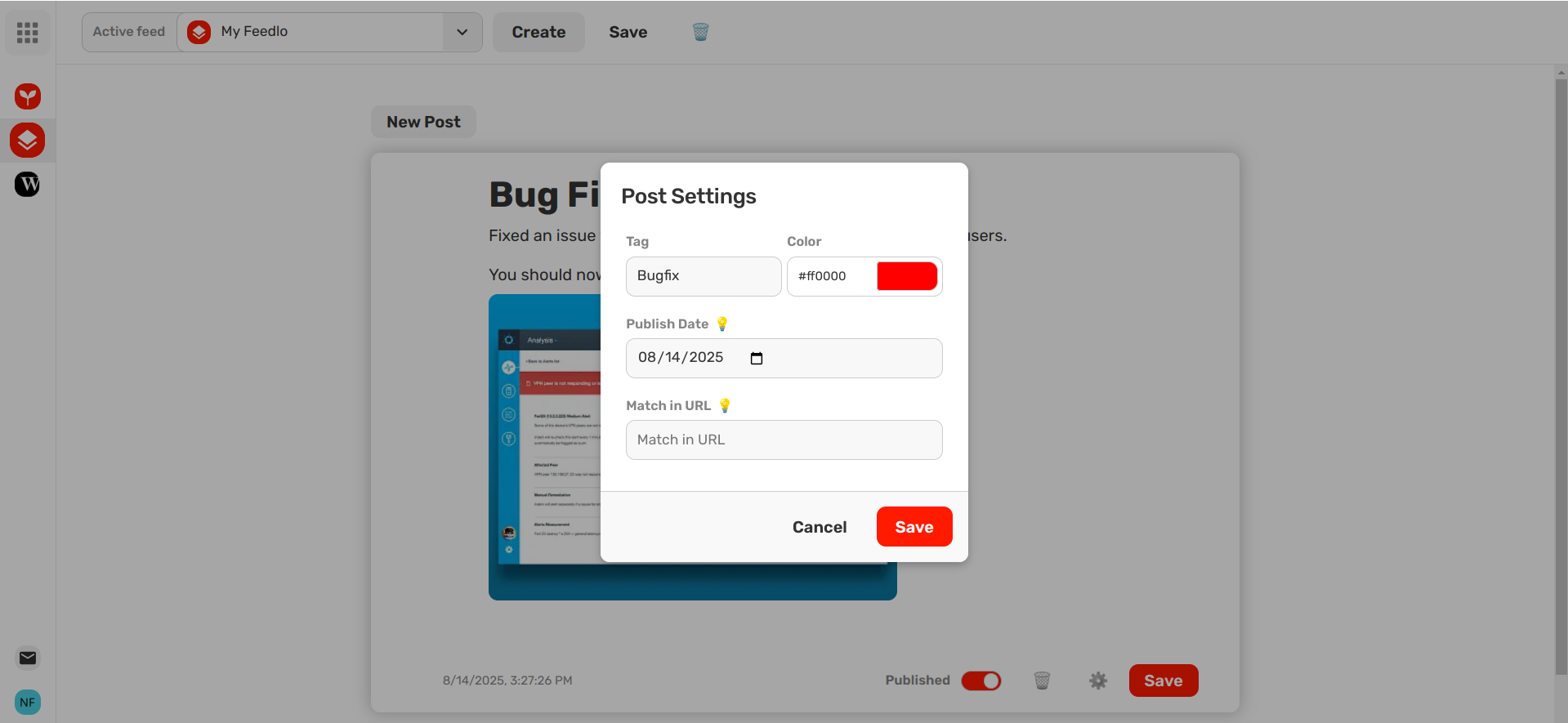
- Enter part of the URL where you want the post to appear, such as an article slug, URL parameter, or any segment of the page URL.
- If you leave this field empty, the post will appear on all pages.
Example:
- Match in URL:
/pricing - The post will only show on URLs containing
/pricing, so users see updates relevant to that page.
By combining Tags and Match in URL, you can create highly organized, targeted changelog posts. Users will immediately see what type of update it is and only see posts that are relevant to the page they’re visiting. 🚀