
Getting Started
Embedding Feedlo on Your Website

Hey there! 👋
Embedding Feedlo on your website is super easy using our Instant Embed feature.
Let’s go through it step by step!
Step 1: Connecting Your Website
Instant Embed works by connecting your website to Feedlo with a unique code in your website’s footer or source. You only need to do this once.
Head over to the Instant Embed page and click Connect a Website.
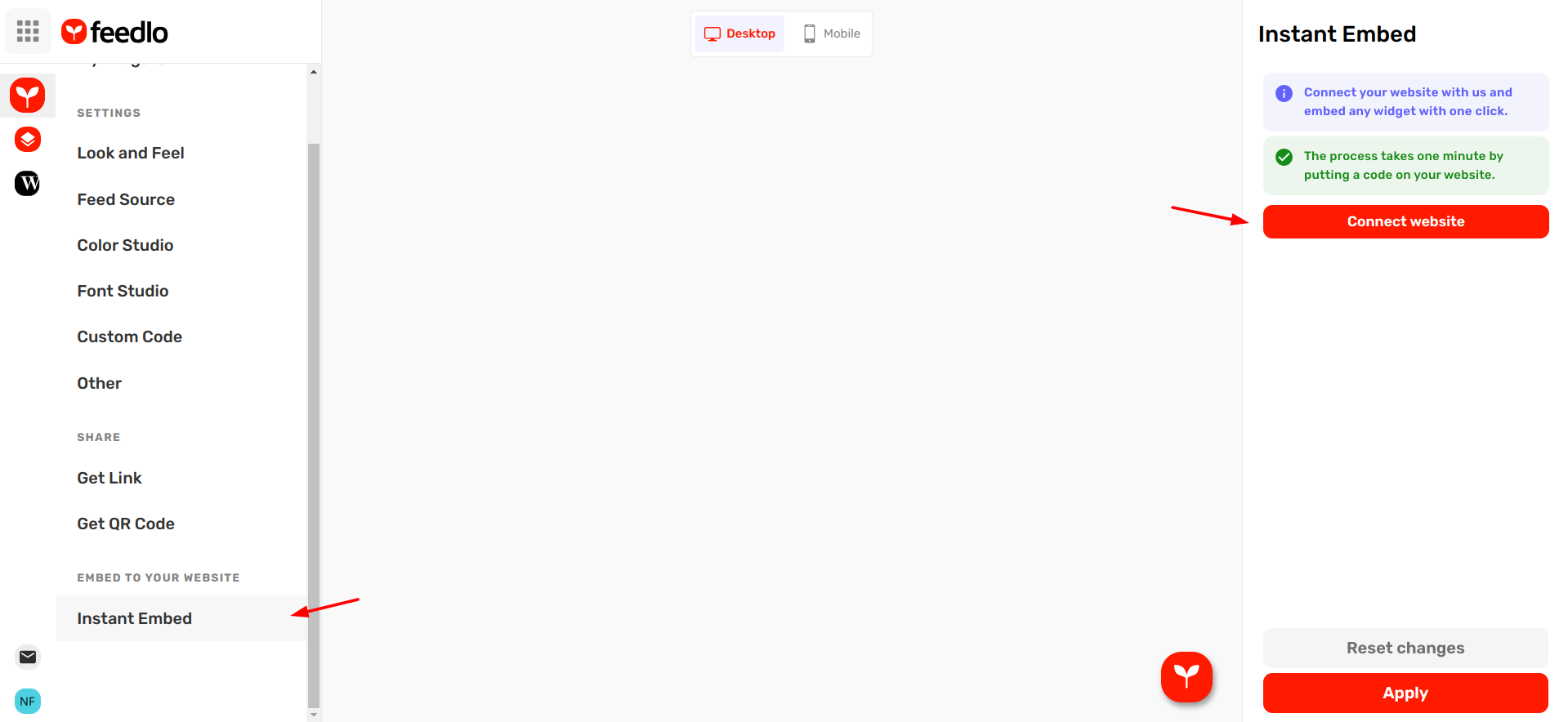
A modal will appear asking you to add your website:
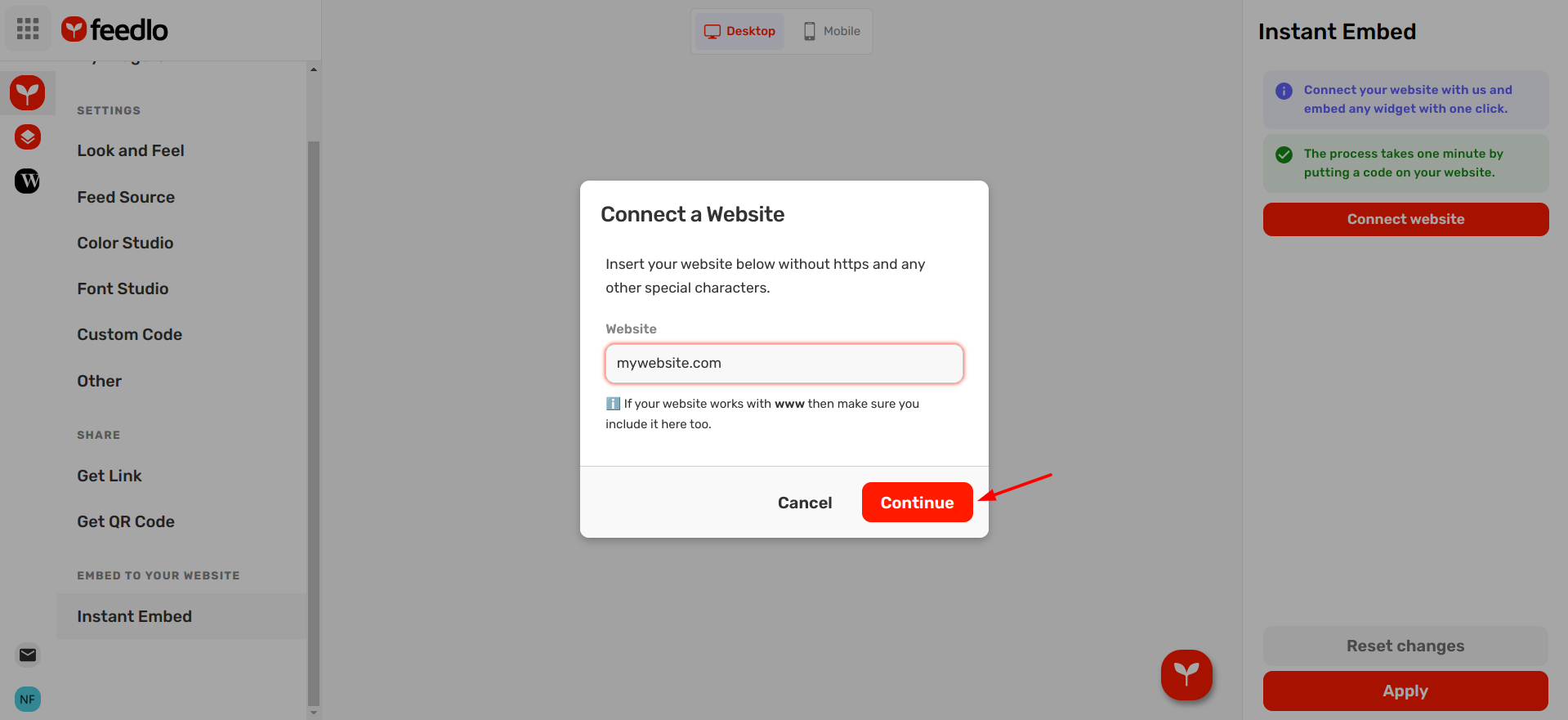
Add your website in the field, then click the blue Continue button.
The modal will then show your unique code:
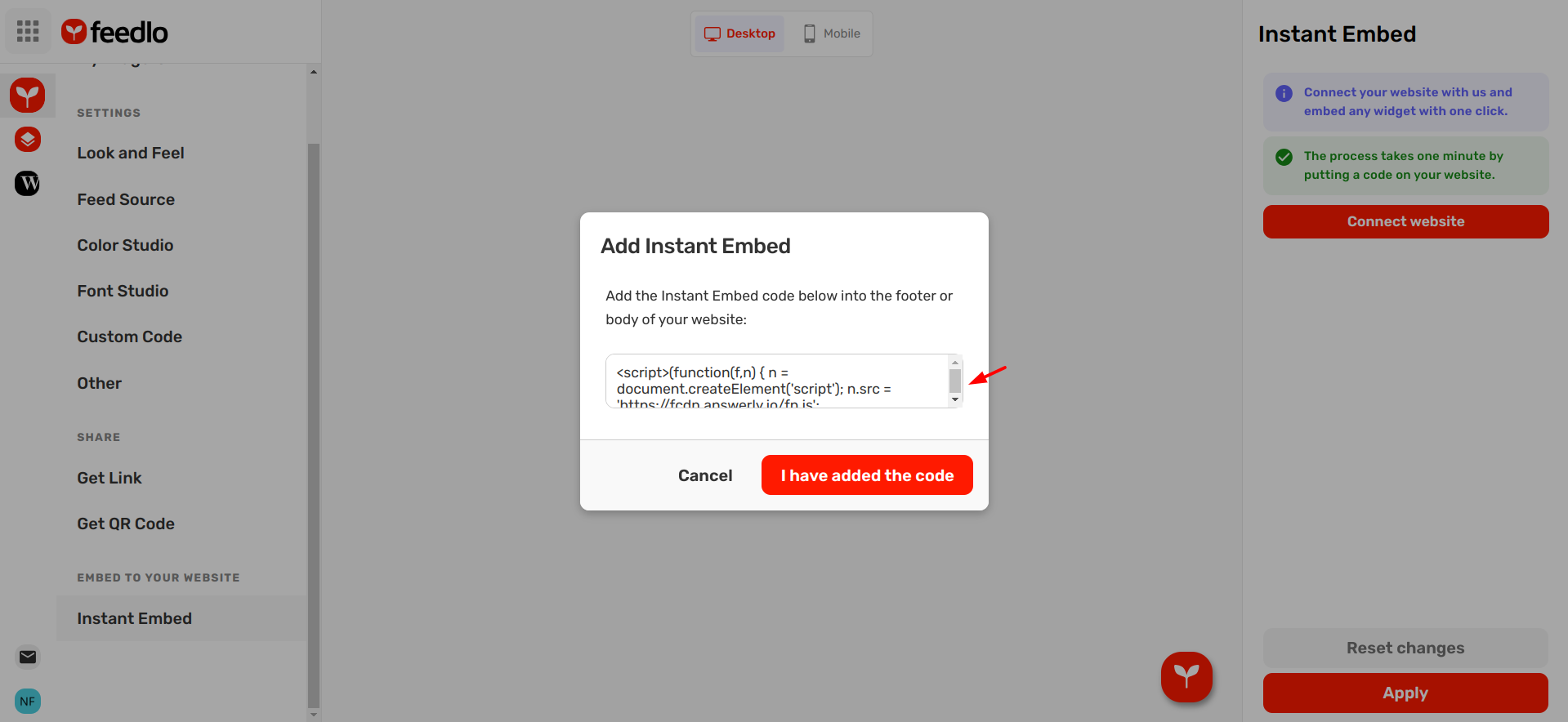
Insert this code 👆 into the footer of your website, then click I have added the code.
Finally, the modal will prompt you to verify your website:
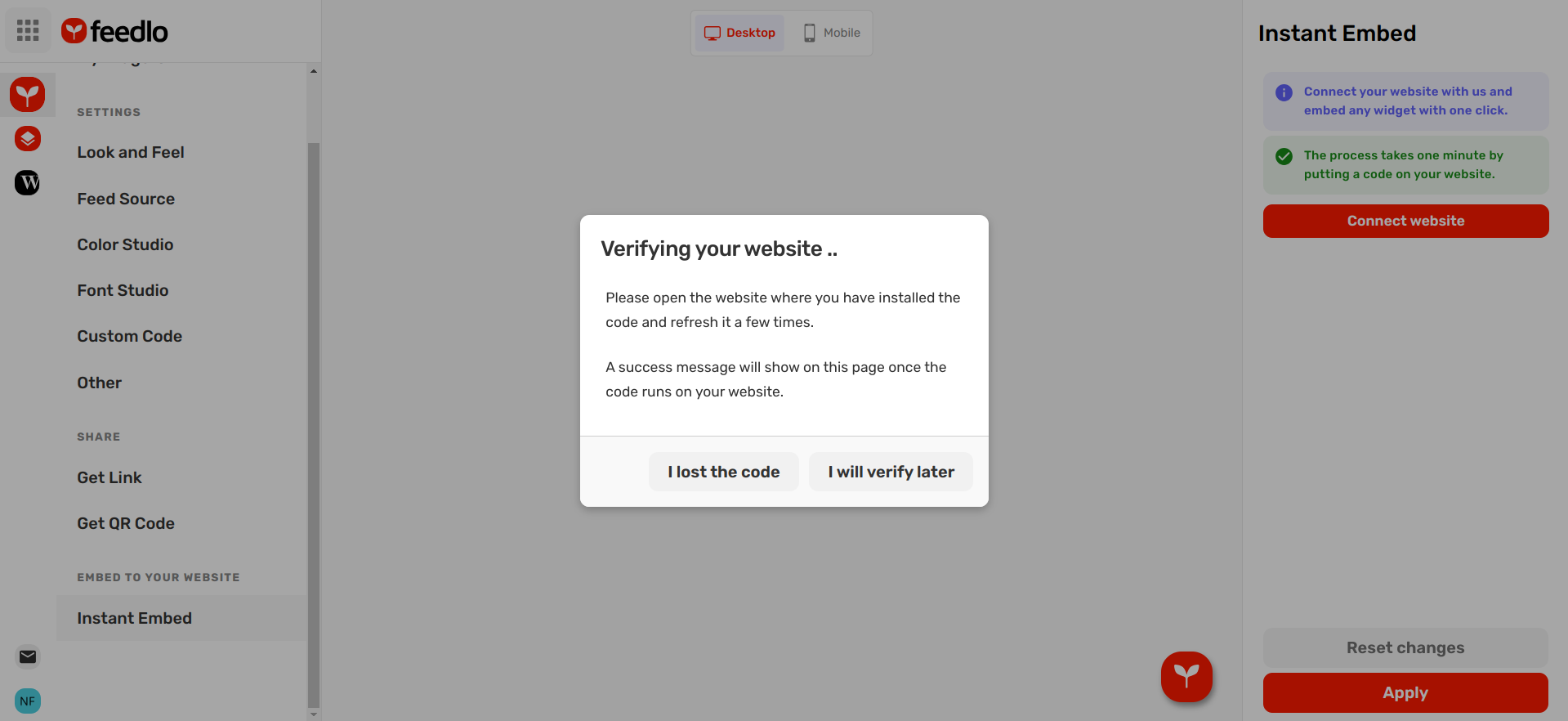
Step 2: Verifying Your Website
After adding the code, it’s time to verify!
Open your website in incognito mode and refresh a few times.
Once successful, the modal will update, confirming that verification is complete:
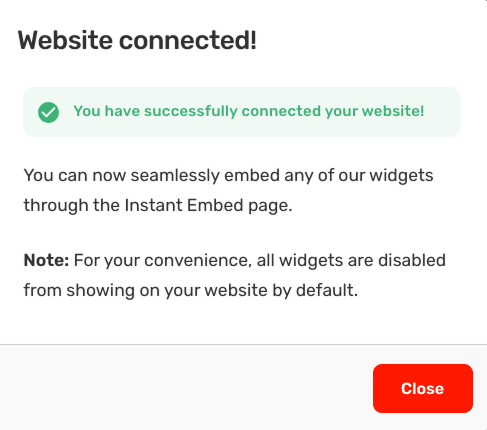
Step 3: Displaying the Feedlo Widget
After verification, refresh the Instant Embed page. Your website should appear on the right side of the screen:
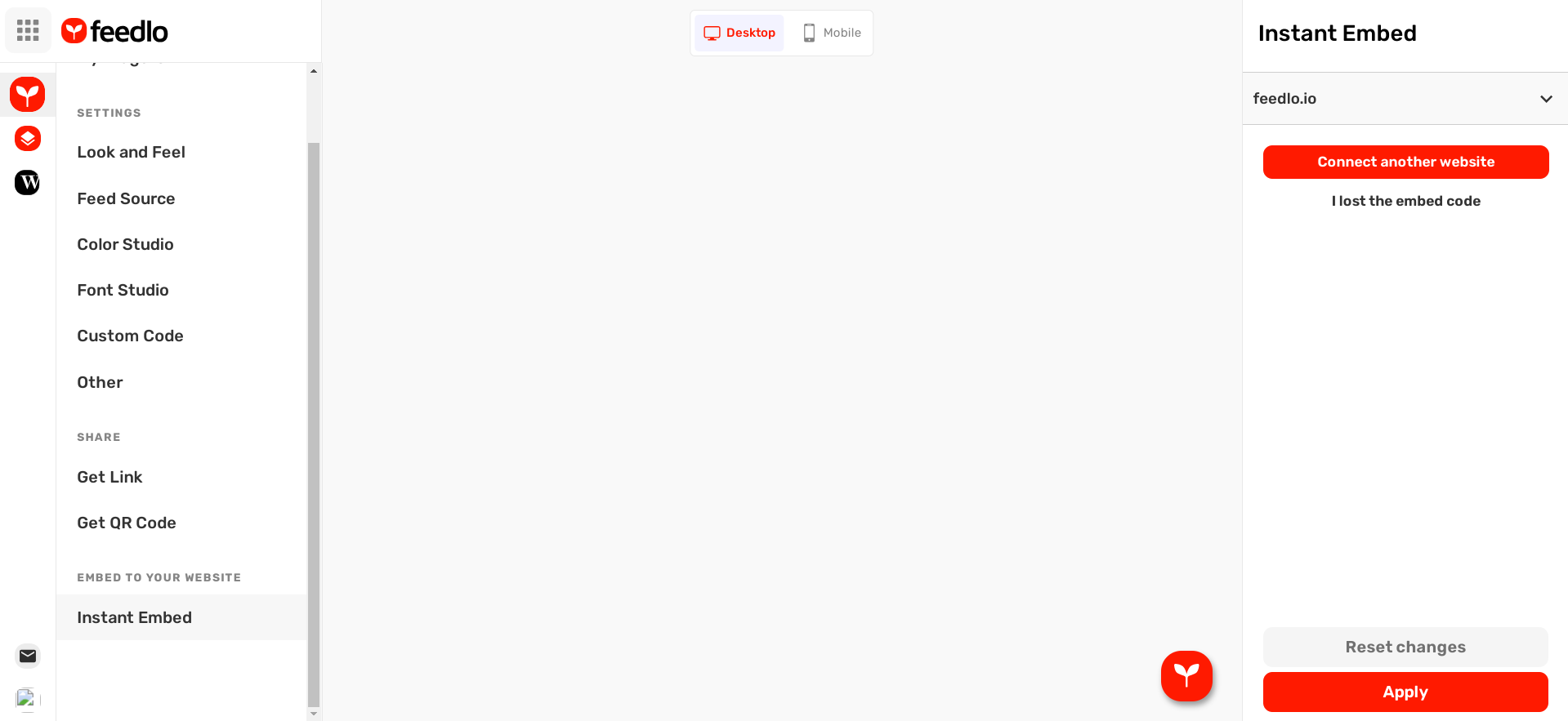
Use the dropdown labeled In this website, and select Show in all pages:
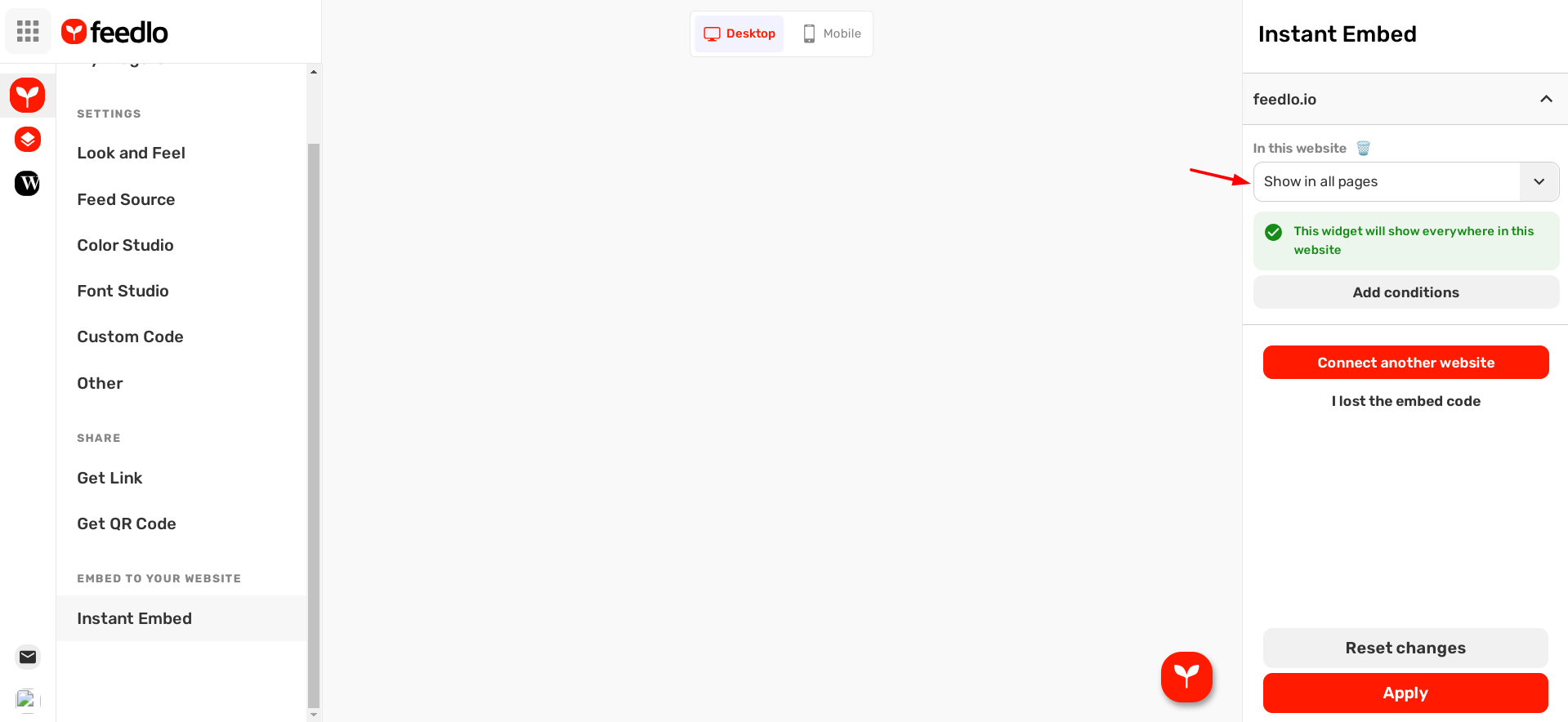
Then click Apply at the bottom right.
That's it! Your Feedlo widget will now appear on your website!
Troubleshooting
My website won’t verify?
- Try reconnecting your website, with or without www.
- Open your website in multiple browsers to confirm the code is applied correctly.
And that’s it! 🍰 If you have any questions, reach out to us anytime at hi@answerly.io.
Happy embedding! 🚀