
Customizing Feedlo
Customizing the Style of Your Feedlo Widget

Hello! 👋
Feedlo allows you to fully customize your changelog widget so it matches your website and brand. Let’s go through the main Look & Feel settings.
1: Title & Description
Set the title and description for your changelog widget to give users context about the updates. Make it clear and concise.
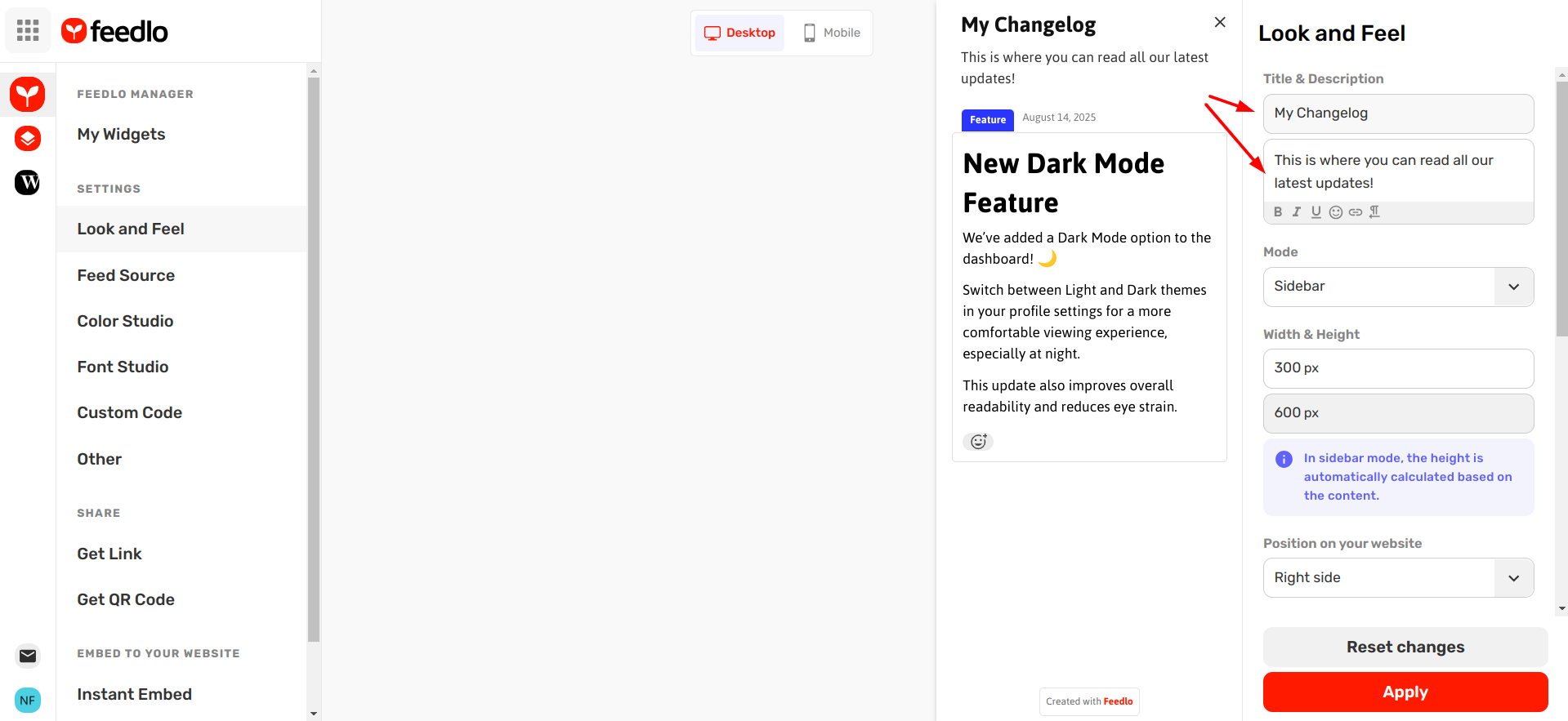
2: Changelog Mode
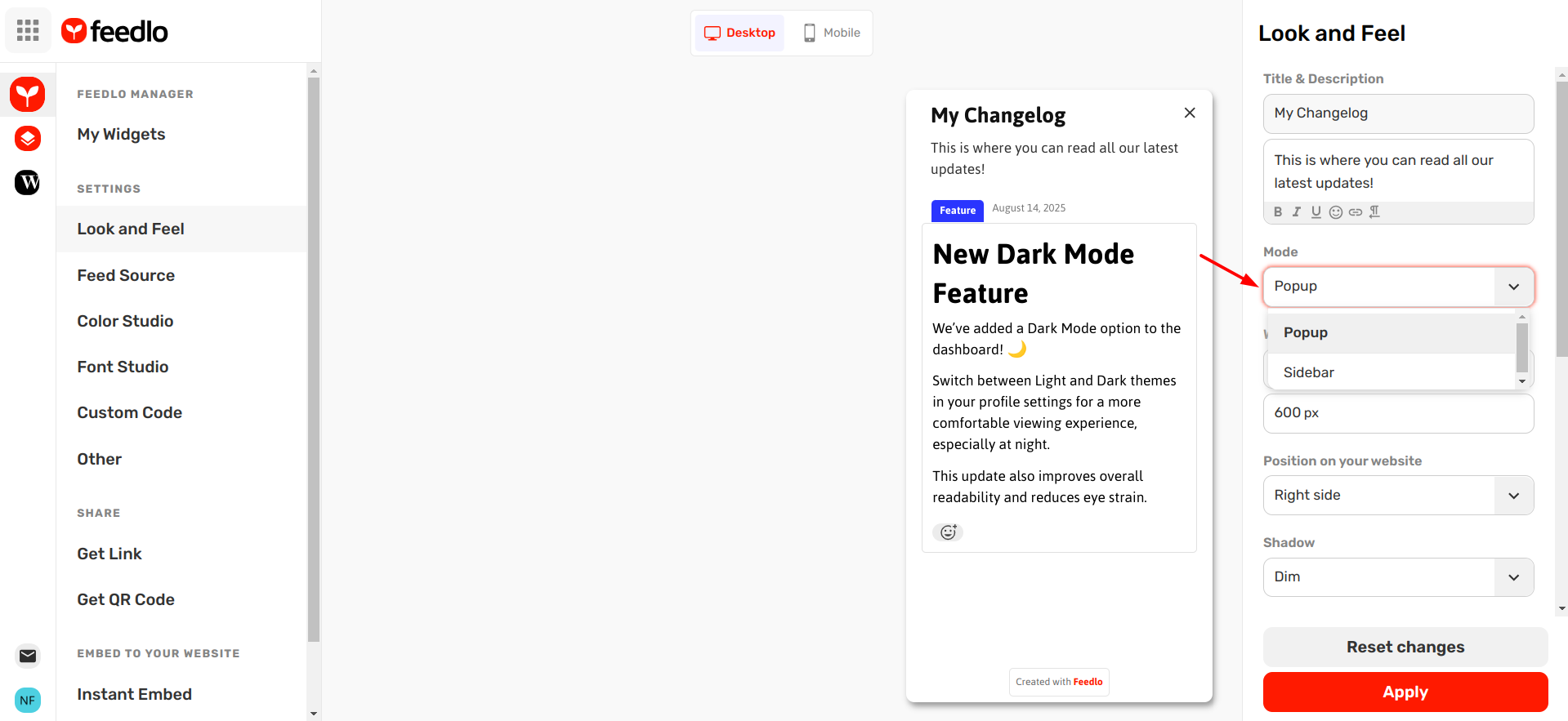
Choose how your changelog displays:
- Sidebar Mode: Appears on the side of your page. Height adjusts automatically based on content.
- Popup Mode: Displays as a popup on your page with custom width and height.
3: Width & Height
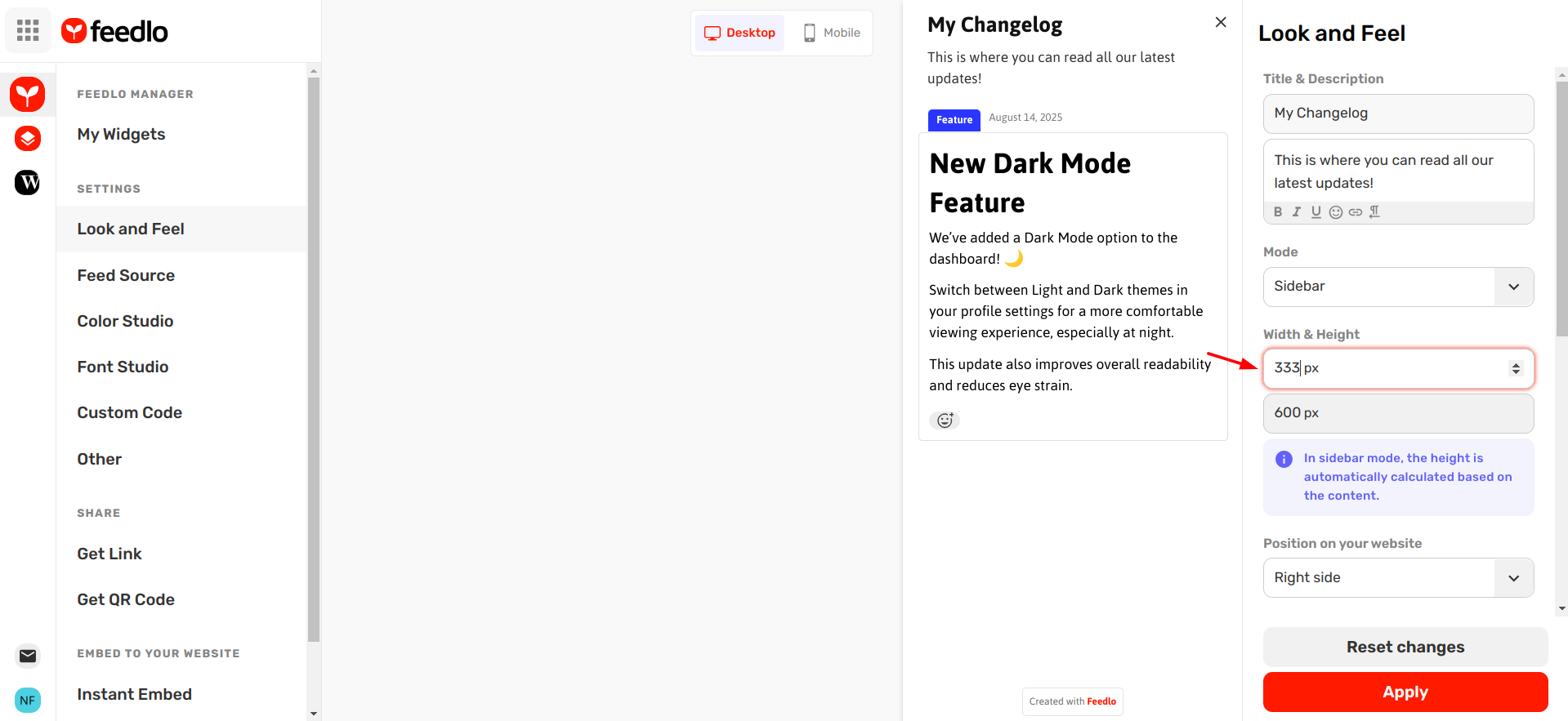
- Set the Width and Height of your widget. Example: 300px width, 600px height.
- In sidebar mode, the height is automatically calculated based on the content.
4: Position on Your Website
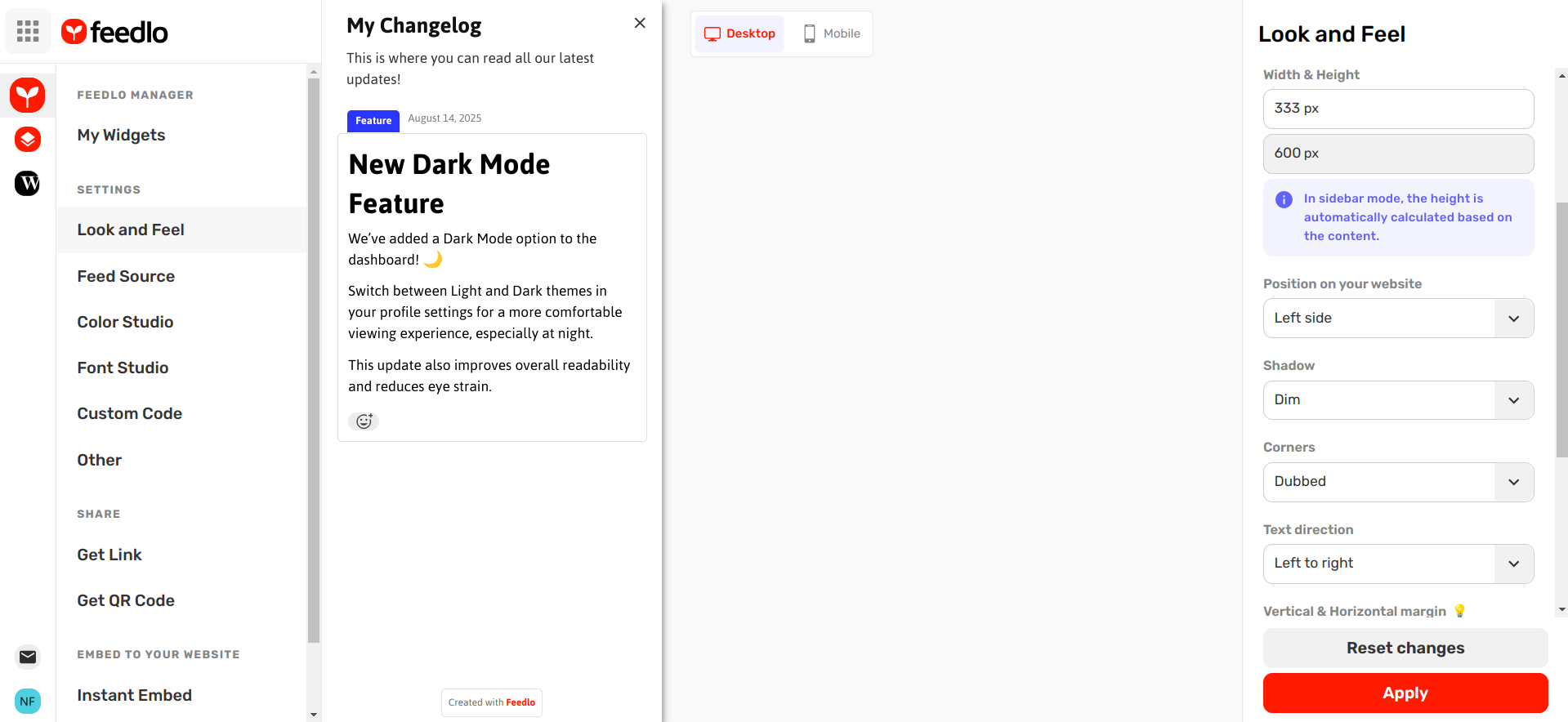
Select where your widget appears on the page (e.g., left or right).
5: Shadow
Toggle shadow on or off to give your widget a subtle depth effect.
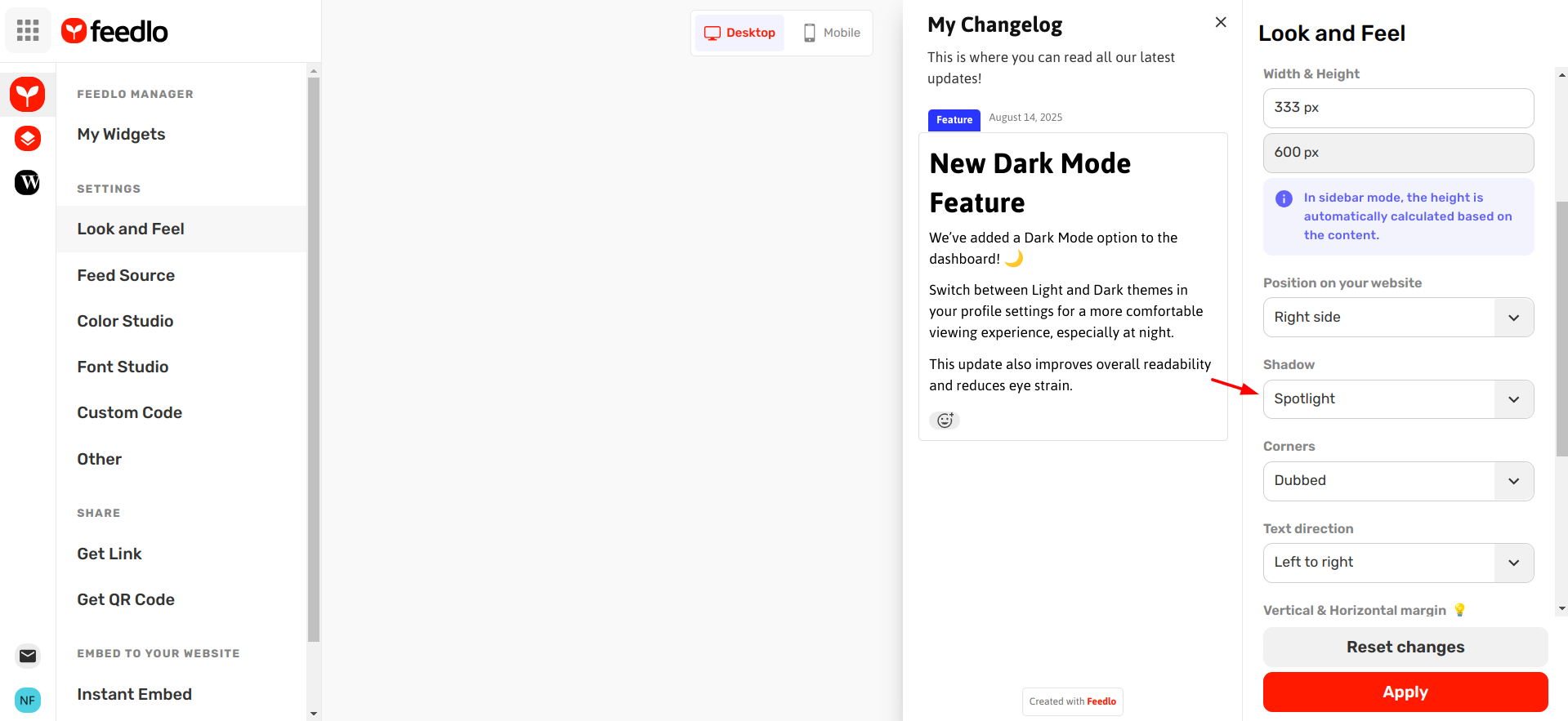
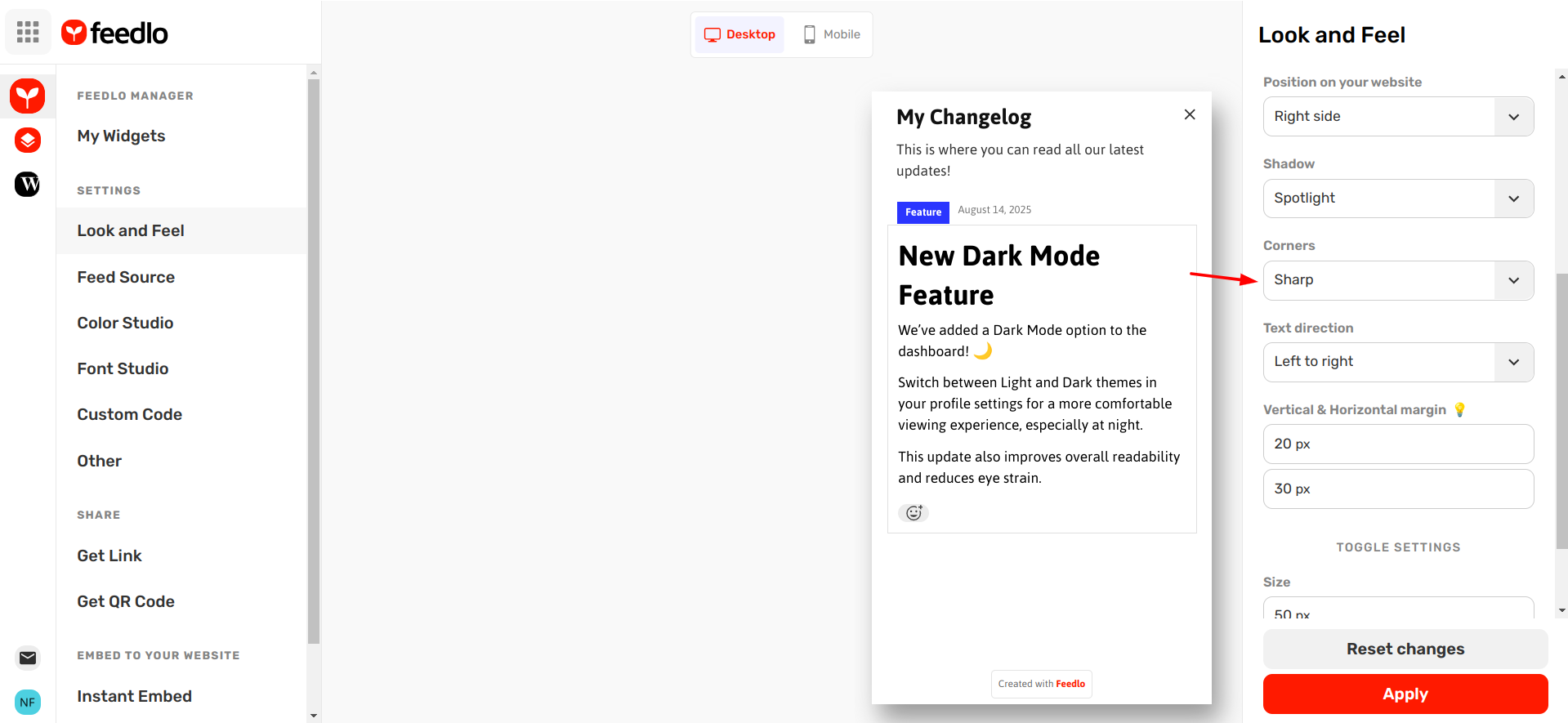
6: Corners
Adjust the corner radius to make your widget sharp or rounded.
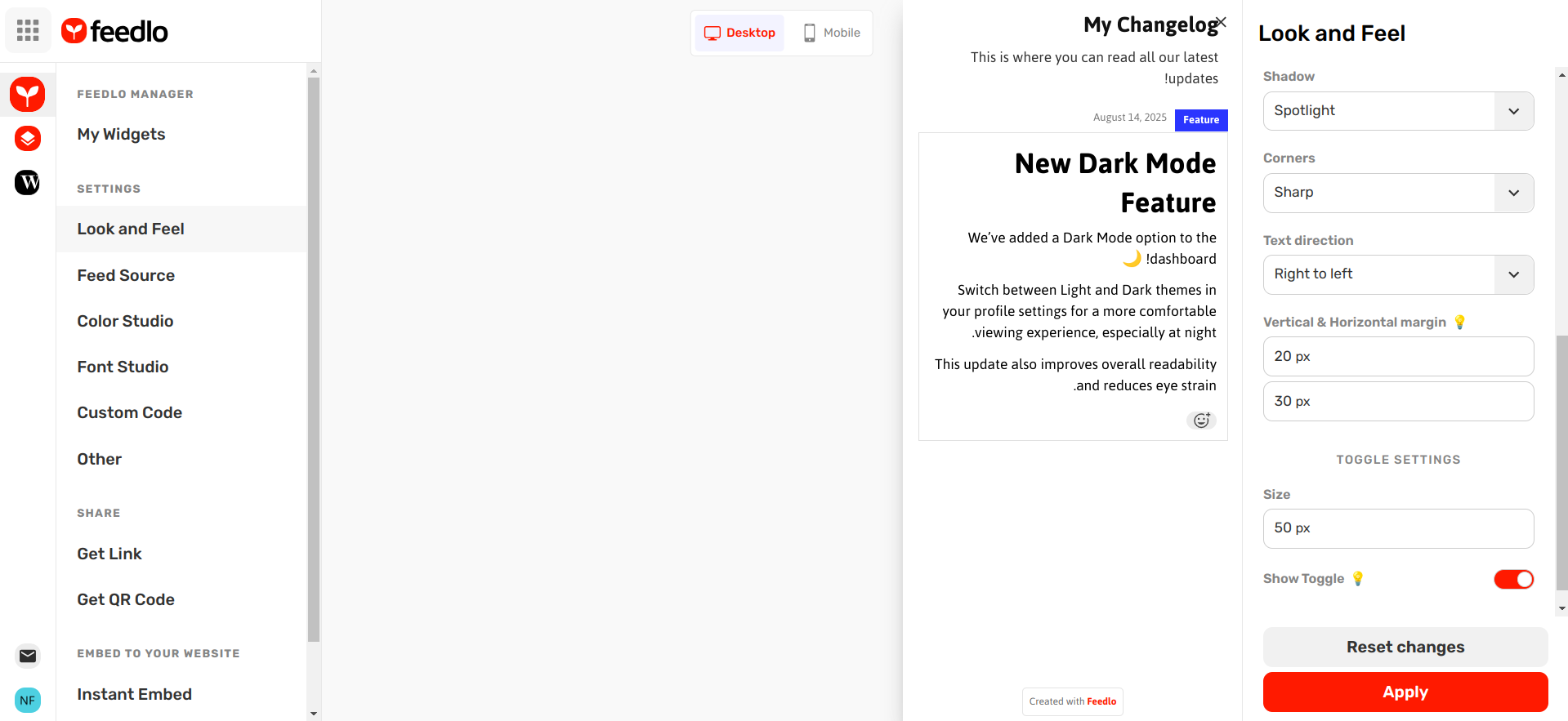
7: Text Direction
Choose the text flow direction (left-to-right or right-to-left) depending on your site’s language.
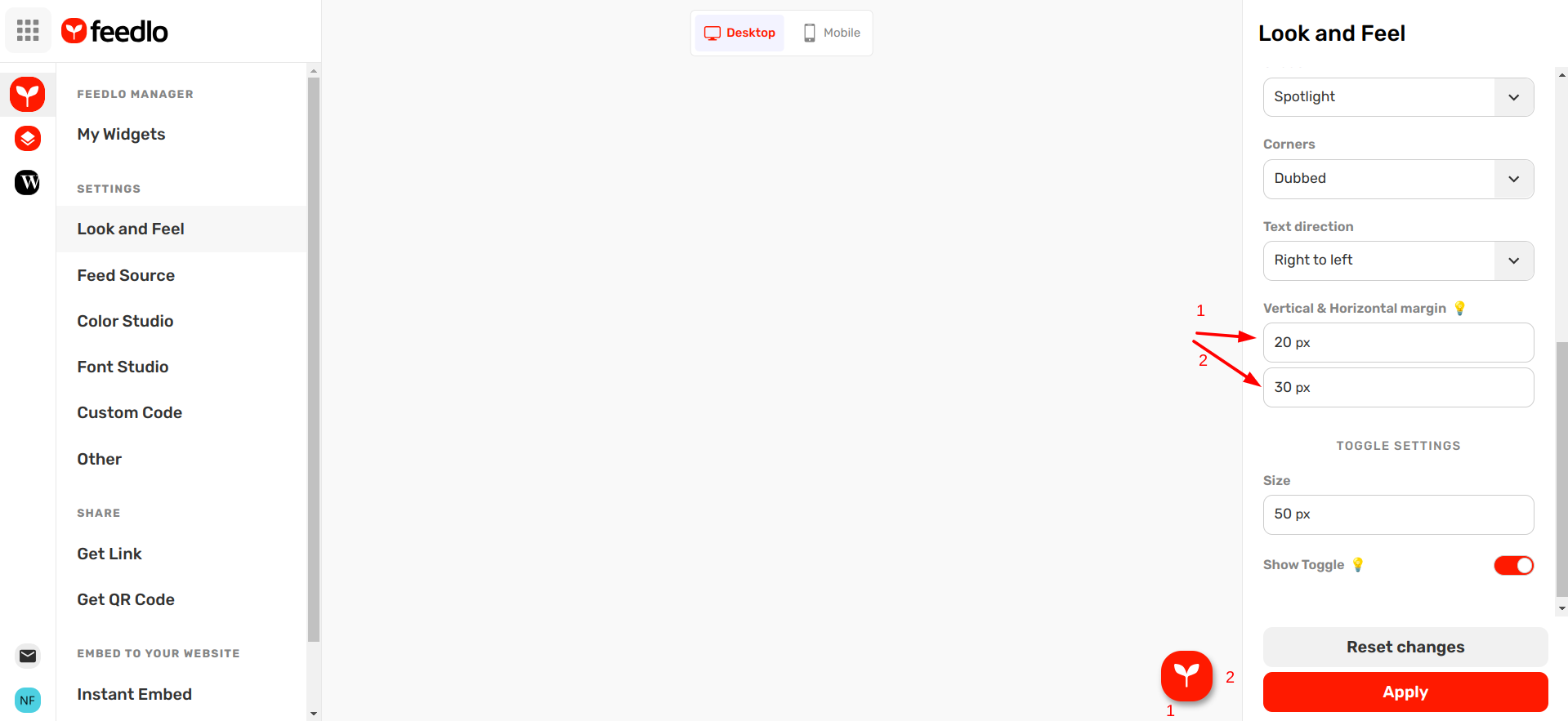
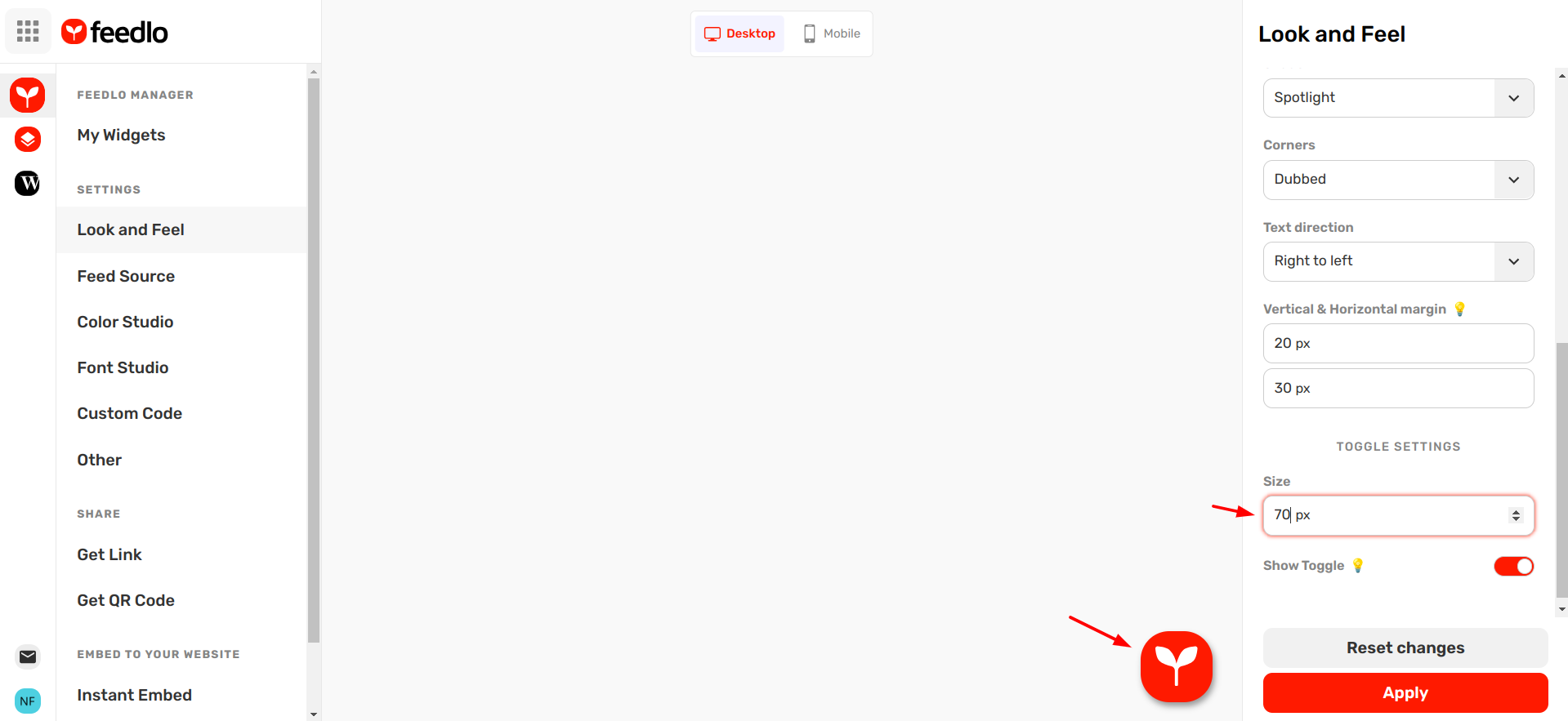
8: Vertical & Horizontal Margin
Set the spacing between your widget and other page.
💡 Example: 20px vertical margin, 30px horizontal margin.
9: Toggle Settings
Adjust the toggle size for collapsible widgets.
Example: 70px.
By configuring these settings, you can make your Feedlo widget look perfect on your website, match your brand, and provide a seamless experience for your users. 🚀